Airvideo on Ubuntu the even easier way
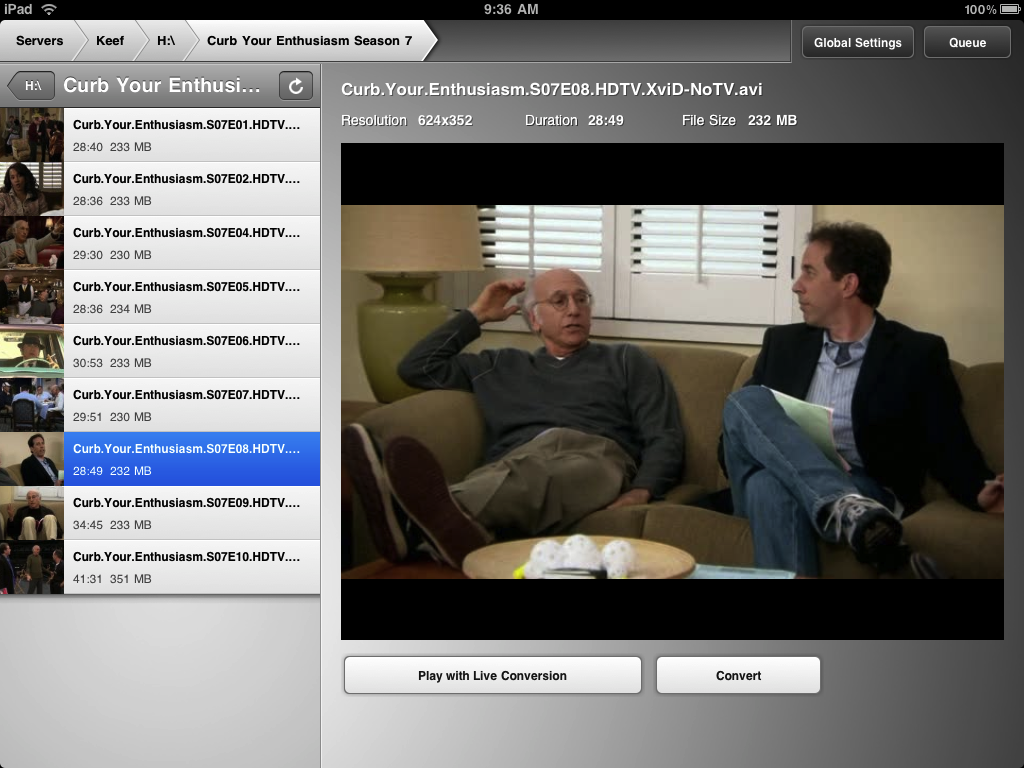 For those of you who don’t know what Airvideo is, it’s a little piece of software which runs on a server in your home and allows you to watch videos on your iPod Touch, iPhone or iPad both in your home via WiFi and when you’re out and about on a 3G network. It transcodes video (including MKV) into something your iDevice can play, then streams it out at the ideal bit rate for the available bandwidth. The server software is free, and the client software is available on the App store for around $2, which is a phenomenal bargain considering what it does.
A while ago I wrote a howto on installing the Windows version of the Airvideo server on Ubuntu using the Wine environment, because the Linux version of the Airvideo server was a little… well, confusing.
Since then, I was contacted by RubioJr (Gracias, Rubio!), who has put together a PPA (a list of packages) to allow Ubuntu and Debian users to enjoy a super simple installation method of Airvideo, without the need to install Wine.
Same as last time, I’ll be doing all my work with Gnome, so if you’re afraid of heavy terminal work, there’s no need to run for the hills.
Easy mode: Install Airvideo Server with (almost) no command line work.
Before we go to far, we’ll have to add RubioJr’s PPA. Basically, your software packages are all part of a big list of apps out on the net. Whenever you want to install a new app, or when the software update tool checks for updates, you’re looking at the remote version of this list and comparing it with yours. We need to add this special list to the main one so that we can install stuff from it.
Go to Applications > Ubuntu Software Center. Once launched, click Edit and select Software Sources.
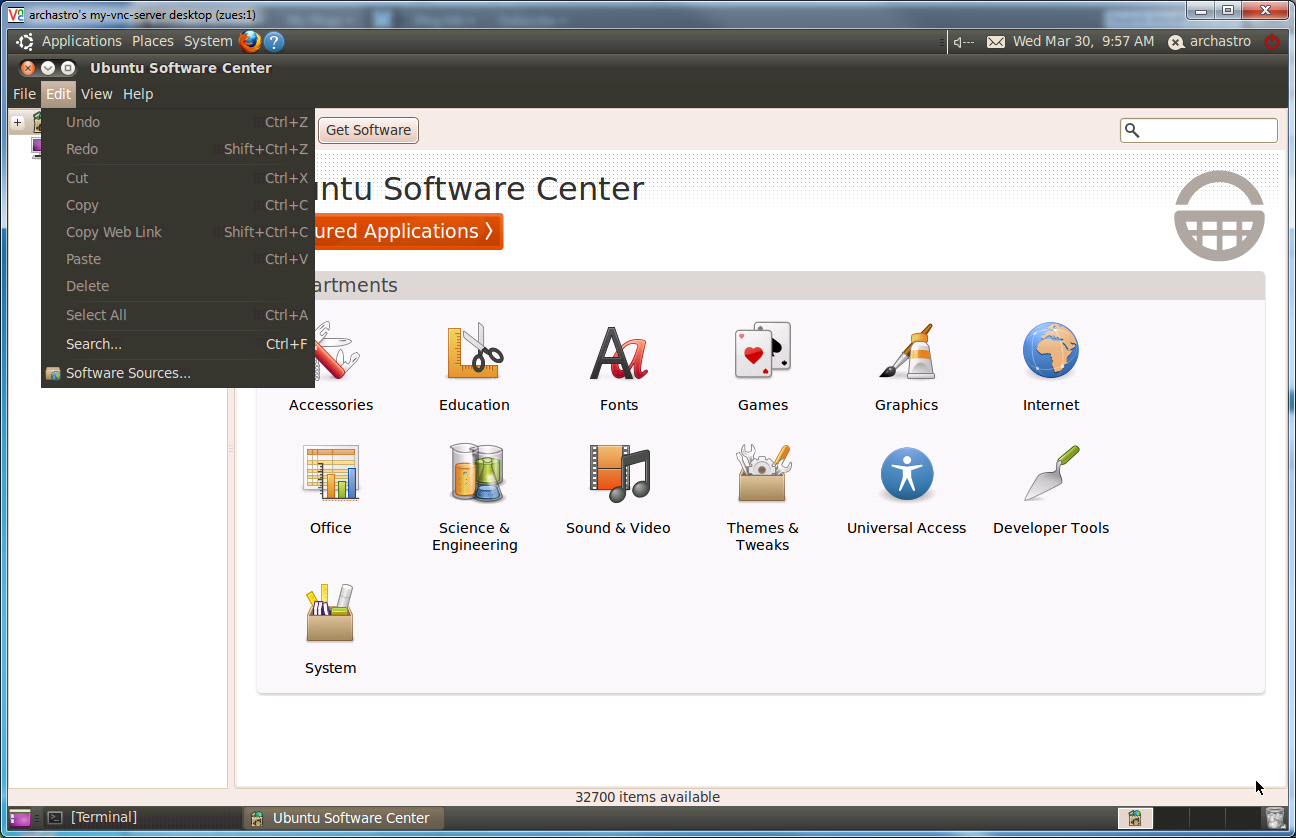
Make a note of your system version in the first window of the sources screen. For example, mine is Lucid as I’m using Ubuntu 10.04.

Go to the Other Software tab and click Add Source. In the APT line field which appears, enter :
deb http://ppa.launchpad.net/rubiojr/airvideo/ubuntu [yourdist] main
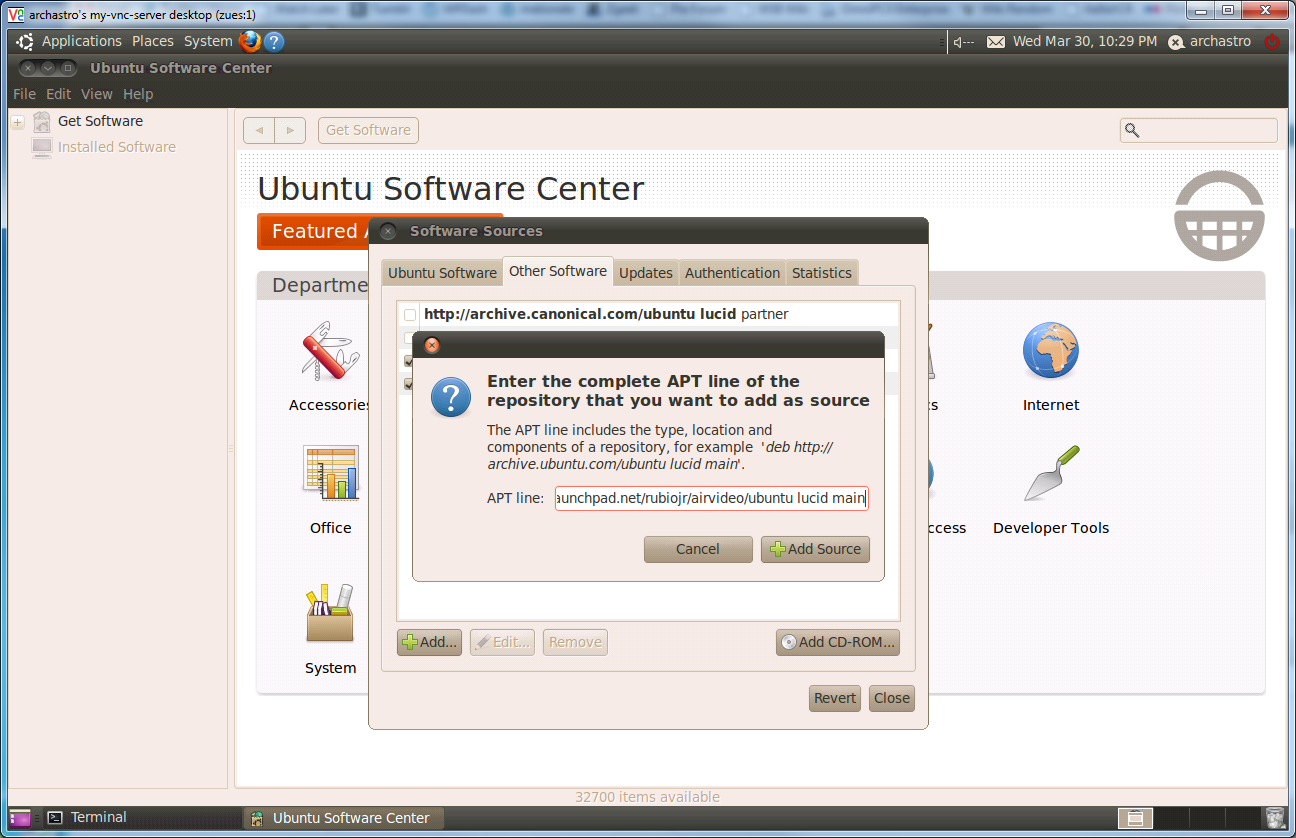
Then press Add to apply your changes. This means that when your software update checks for new versions of the programs you have installed, it’ll also check RubioJr’s list of apps. It also means you can install things from that list, which we’ll do now.
When you search in Software Center for Airvideo, you should now see the following entry:
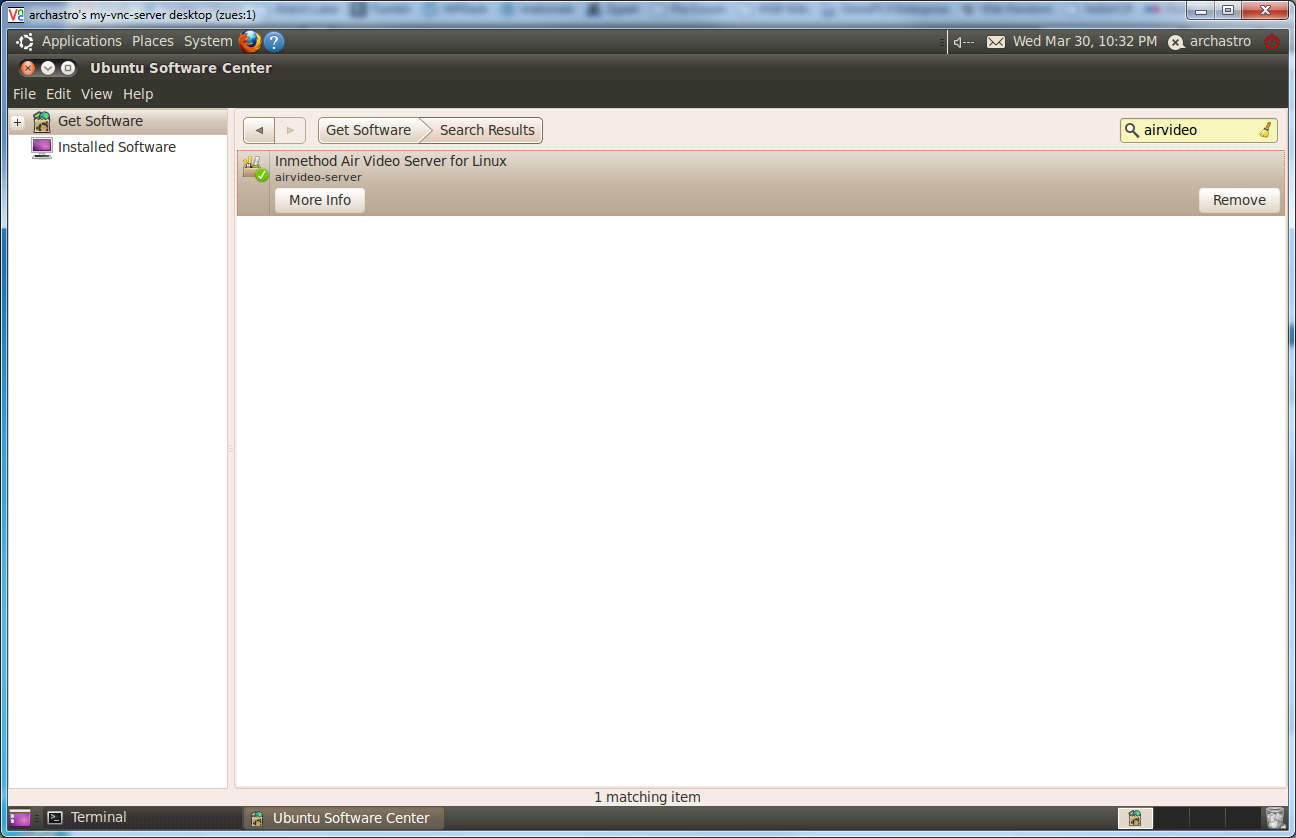
Mine says that it’s already installed, because I’ve already installed it (obviously), but yours should have an install button. Click it, and all the required stuff to run Airvideo will download from the net and be installed on your machine.
Before we start Airvideo, we need to tell it which folders we want it to serve out to us. Click the Applications button, go to the Accessories menu and open terminal.

I know I promised as little terminal work as possible, and I’m hoping this isn’t too complex. In the terminal which appears, type sudo gedit and press enter.
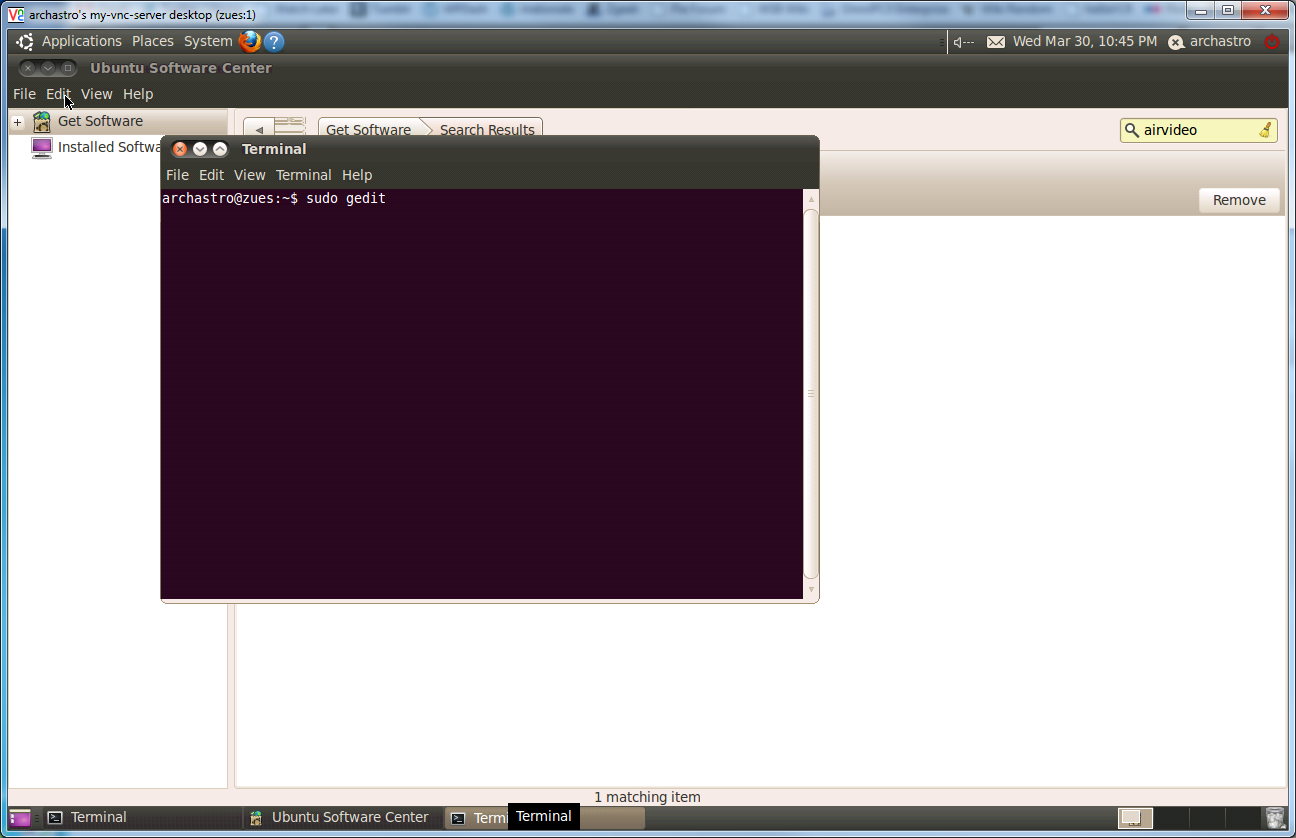
You’ll be prompted for your password, and a big boy version of the Gedit text editor will start.
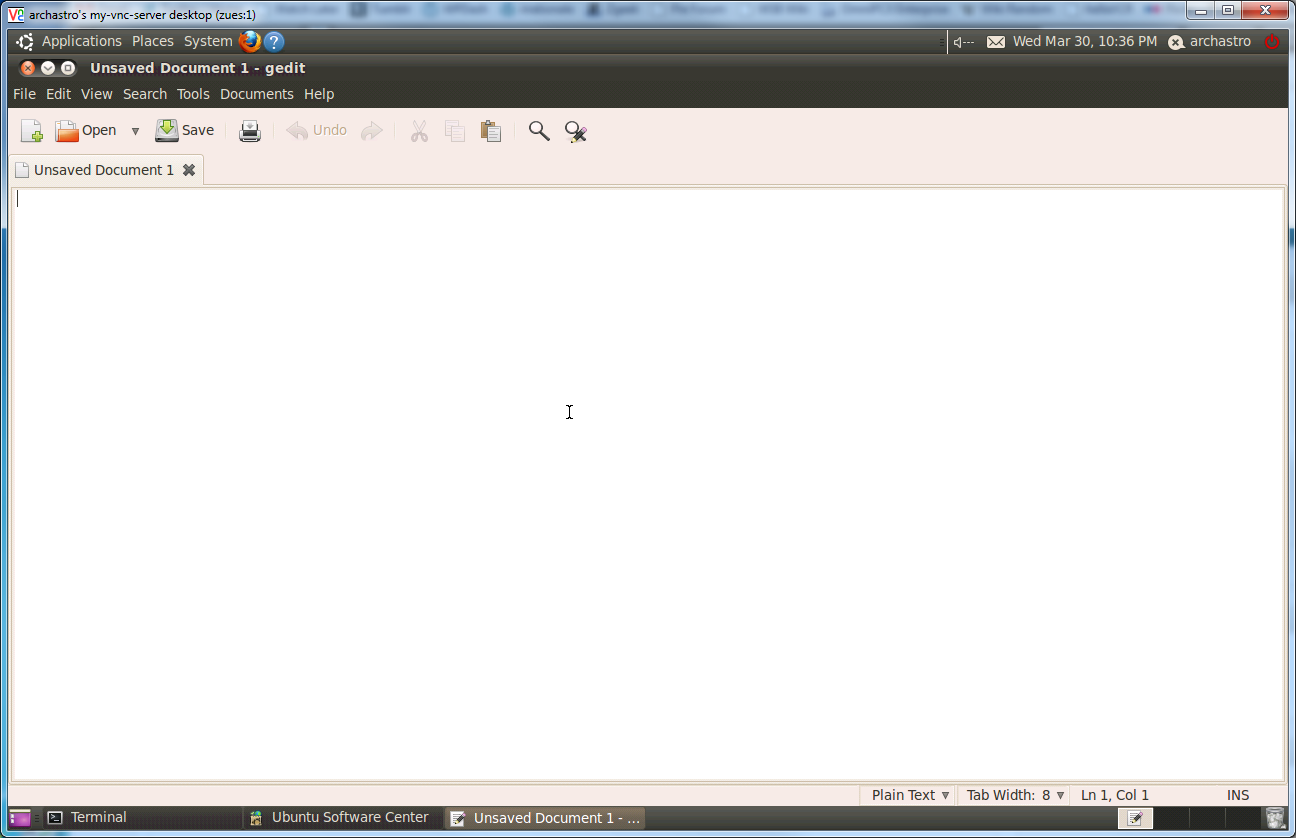
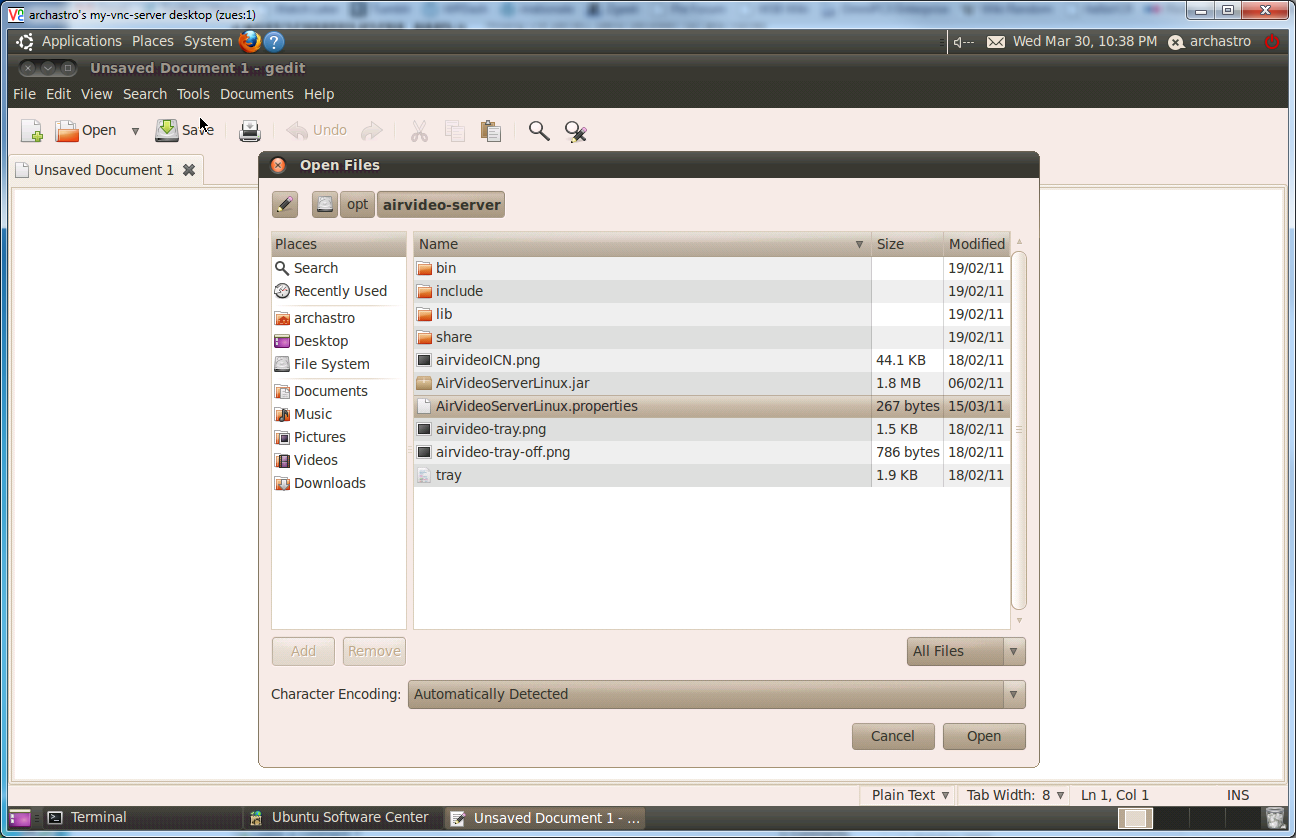
Press the Open button, and browse File System (in the left hand bar), opt, airvideo server. In this folder, you’ll find a file called AirVideoServerLinux.properties:
Open the file and it should look something like this:
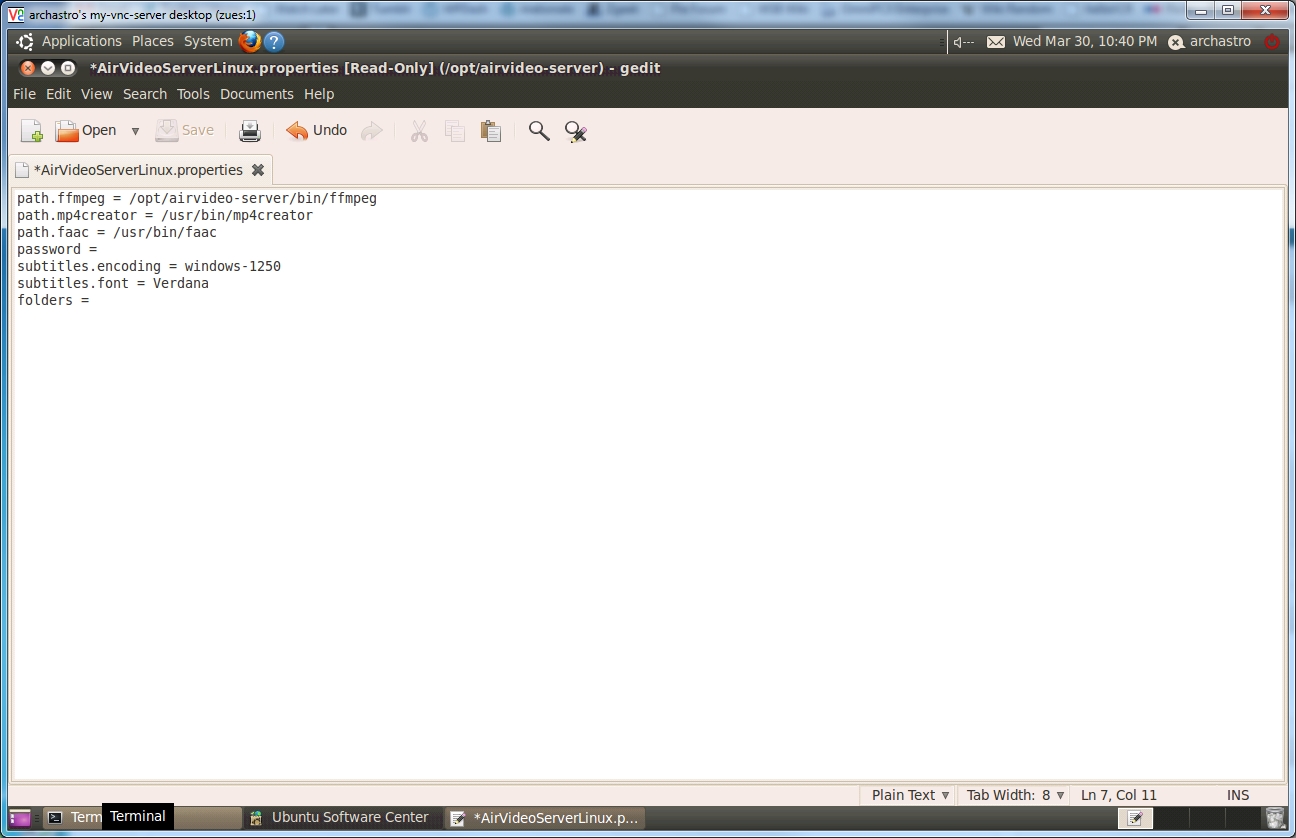
In the folders section, we need to add some entries for the folders we want to serve. You’ll need to add them so it’s FOLDERNAME:/PATH/TO/FOLDER and each entry should be separated by a comma - like this:

Press Save to commit your changes and you’ll be ready to fire up Airvideo. In the Applications menu, under Sound and Video, you’ll see a new program called AirVideo Server. Click it to start AirVideo.
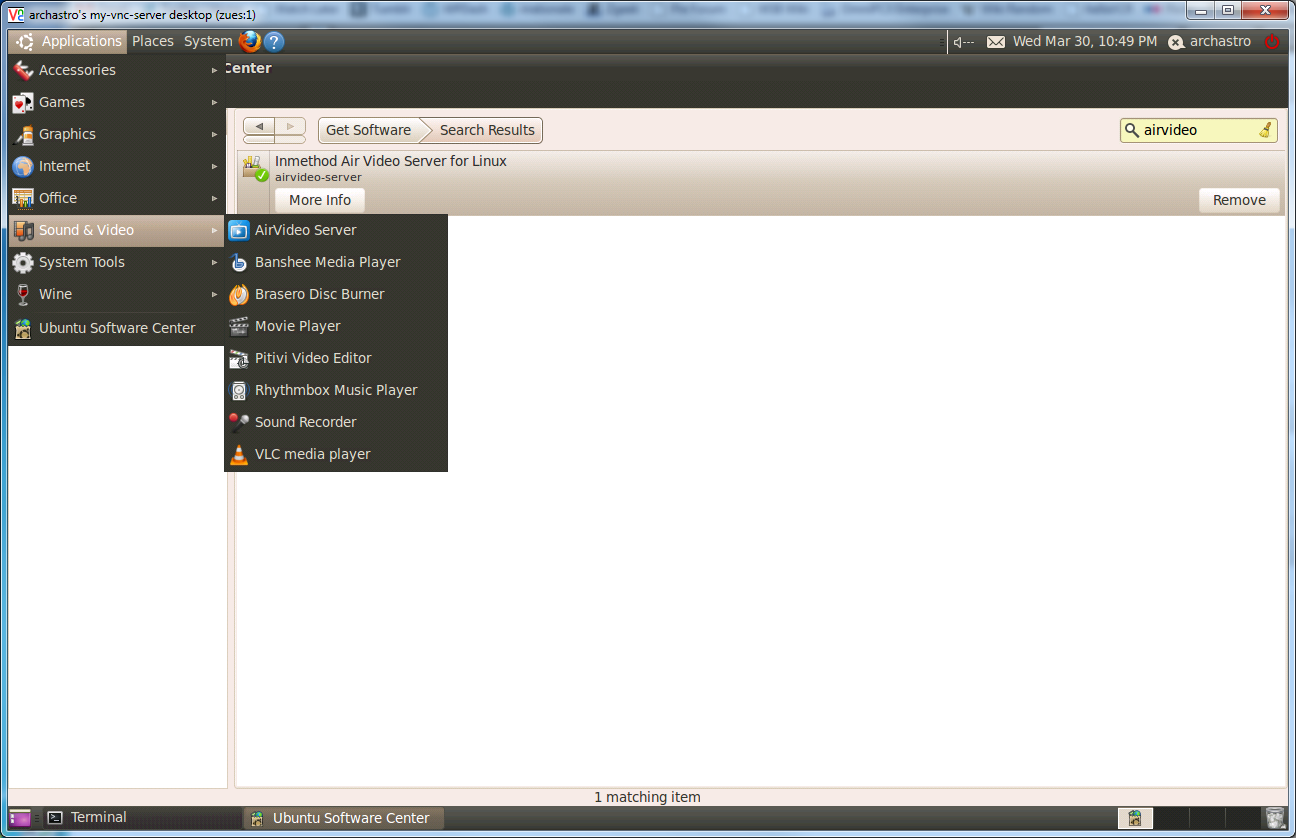
Once started, you’ll see the Airvideo logo in the notification area on the top right of your screen. Right click and select Start Server.
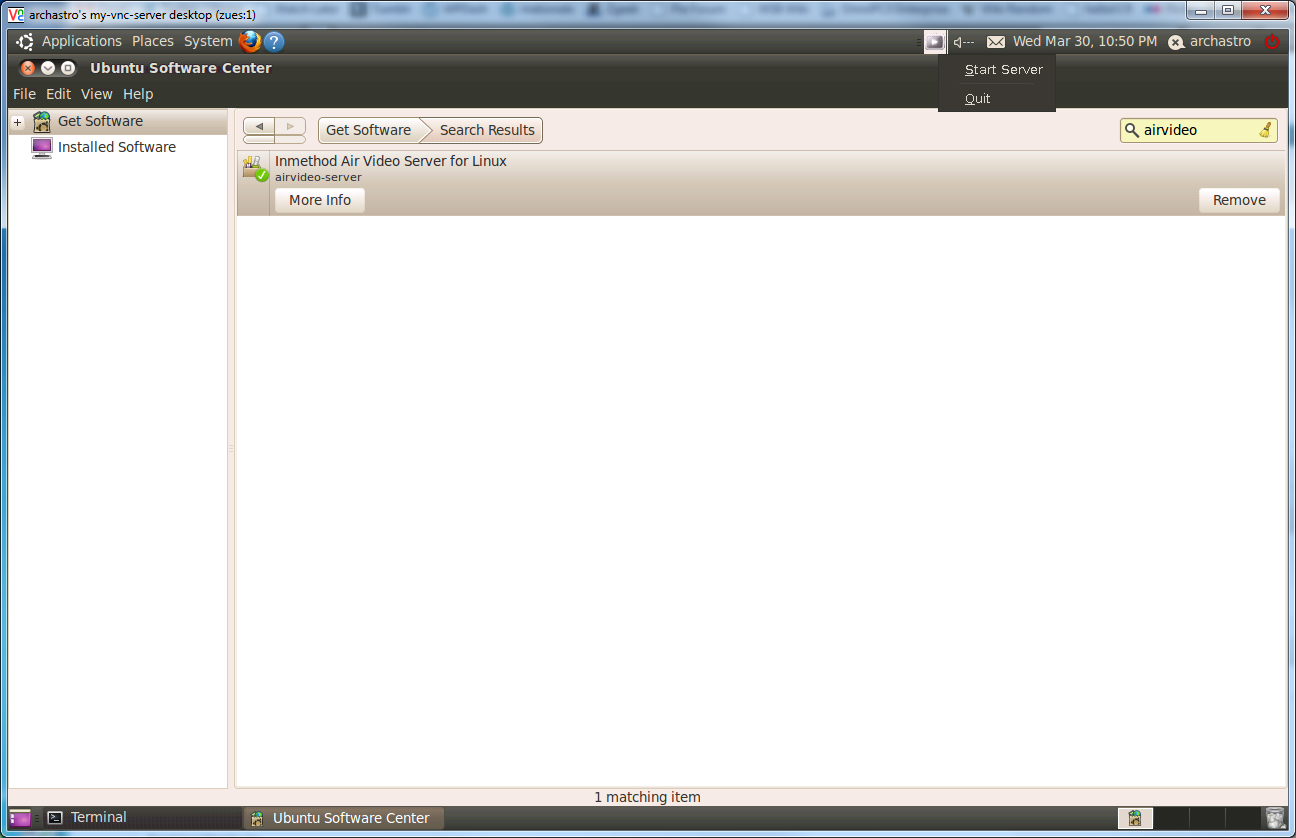
The icon changes to blue to let you know that your server is running.
You’re done! Fire up Airvideo on your iDevice and browse to your server for some awesome streaming streamyness!
Hard Mode: Install AirVideo Server from command line.
Actually, this is probably simpler than the point-and-click variant, but I understand that the terminal seems a little daunting to some users. For those who are OK with it, do the following steps:
Fire up a terminal and enter:
sudo add-apt-repository ppa:rubiojr/airvideo
This adds RubioJr’s repository, allowing his package list to be installed/updated.
Refresh your apt repositories:
sudo apt-get update
Install AirVideo Server:
sudo apt-get install airvideo-server
Edit the config file:
sudo [nano|vi|emacs|your_text_editor_of_choice] /opt/airvideo-server/AirVideoServerLinux.properties
After folders, enter [Name you want the folder to be called]:/path/to/folder,[folder2]:/path/to/folder2
Save the file.
Launch the server:
airvideo-server
or launch in the background
nohup /usr/bin/airvideo-server
God Mode: Create an autostart script so AirVideo launches when your computer does.
This one’s best used if you have a Linux server humming away in the corner of your office, and it’s BIOS is set so it’ll resume after a power outage, so that no matter what, your AirVideo is going to be running.
Fire up a terminal and enter
sudo [text editor of choice] /etc/init.d/airvideo-server
In the file (which should be blank), paste the following:
#!/bin/bash
case "$1" in
  start)
    echo "Starting AirVideo"
    start-stop-daemon --start --quiet -b -m -p /var/run/airvideo-server.pid --chuid airvideo --exec /usr/bin/java -- -jar /opt/airvideo-server/AirVideoServerLinux.jar /opt/airvideo-server/AirVideoServerLinux.properties
  ;;
  stop)
    echo "Stopping AirVideo"
    start-stop-daemon --stop --quiet --pidfile /var/run/airvideo-server.pid
    rm -f /var/run/airvideo-server
  ;;
  *)
    echo "Usage: /etc/init.d/airvideo-server {start|stop}"
    exit 1
  ;;
esac
exit 0
Save the file out, then create the user which is going to be used to run the file. You should also double check to make sure that /opt/airvideo is readable by this account.
sudo adduser airvideo
Make the file executable, then add it to the startup defaults.
sudo chmod +x /etc/init.d/airvideo-server
sudo update-rc.d airvideo-server defaults
When you next reboot your system, airvideo should start automatically.
Enjoy!
More info:
http://blog.frameos.org/2011/02/08/installing-airvideo-linux-server-in-ubuntu/
http://inmethod.com/air-video/index.html
http://wiki.birth-online.de/know-how/hardware/apple-iphone/airvideo-server-linux
http://www.inmethod.com/forum/posts/list/1856.page
https://launchpad.net/~rubiojr/+archive/airvideo
https://gist.github.com/905291 - Init script update - thanks aq1018!
#Airvideo #Ipad #Iphone #Ipod-Touch #Stream #Stream-Video #Streaming #Ubuntu #Ubuntu-10-04 #Ubuntu-10-10